
Guide
Your own avatar with Figura
Figura shows a model you made in place of your plain skin: a detailed skin, a hat, ears, hair, coat tails. This is everything you need to make one for Persephone, even if you have never opened Blockbench.
The shared standard
So that detailed and simple avatars look right side by side, everyone keeps to one standard:
- Vanilla proportions. Head, body, arms and legs the size of a normal player's. Your character's height
isn't set by the model but by
/character sizewithin your race's range: the avatar grows and shrinks with the character by itself. - A texture 8 times finer than vanilla. One pixel of a normal skin becomes an 8×8 square, the whole layout 512×512. Less is fine, more is not: that way everyone's painting is on the same scale.
- Small extras: hats, hoods, ears, hair, tails, coat tails, bags. Nothing that blocks other players' view, changes your silhouette beyond recognition or imitates someone else's avatar.
- Up to 2 MB on our avatar server. The template is about 20 KB, so there is plenty of room.
Everyone sees other players' avatars at the High trust level by default: extras, animations and scripts show. If someone's avatar gets in the way, lower their trust in the Figura menu, under Permissions, and tell the game masters.
What you need
- Figura is already in the pack; there is nothing to install.
- Blockbench, a free model editor (an app for Windows, macOS and Linux, or the web version).
- The Figura Model Format plugin for Blockbench (optional but handy): File → Plugins, search for “Figura”, Install. It adds a model format made for Figura, copies a part's script path and has tools to shrink the file.
- Any image editor for the texture: Blockbench's own brushes, Aseprite, Krita, Photoshop; anything that saves PNG with transparency.
- For scripts, any text editor; VS Code is the most comfortable.
The template
Start from the ready-made template: a player model in vanilla proportions with a 512×512 texture, and an example of a toggleable extra, a hat you can take off and put on in game.
The archive holds two folders: persephone_classic (classic 4-pixel arms) and
persephone_slim (slim 3-pixel arms). Take one. Each contains:
| File | What it is |
|---|---|
avatar.json | The avatar's name, authors and description. Change them to yours. |
avatar.png | The avatar's icon in Figura's wardrobe. |
model.bbmodel | The Blockbench model: head, body, arms, legs, the outer layer and the hat. |
skin.png | The 512×512 body texture; this is what you paint. |
hat.png | The hat's texture: an extra can have a picture of its own. |
script.lua | Hides the plain player and puts the hat on the action wheel. |
Unpack the folder into figura\avatars inside the game folder. With the Persephone launcher that is
%APPDATA%\.persephone-rp\figura\avatars; the easy way there is from the game: Figura menu →
Wardrobe tab → the folder button (“Open avatars root folder”). You can also drag the avatar folder onto
the wardrobe window.
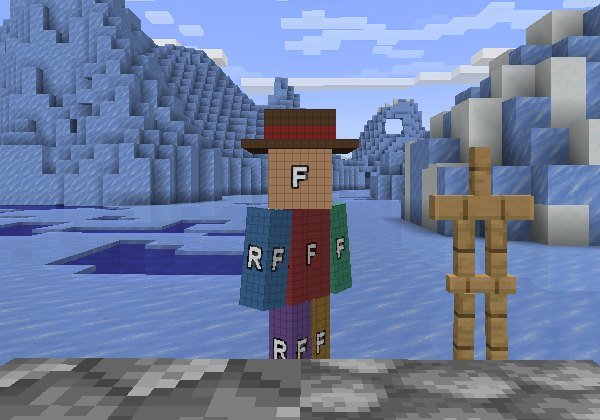
Painting the texture
skin.png is laid out like an ordinary Minecraft skin, only 8 times larger: every body part sits where
it does on a 64×64 skin. The darker grid line every 8 pixels marks one pixel of the vanilla skin. The letters on
the faces are hints for you to paint over.
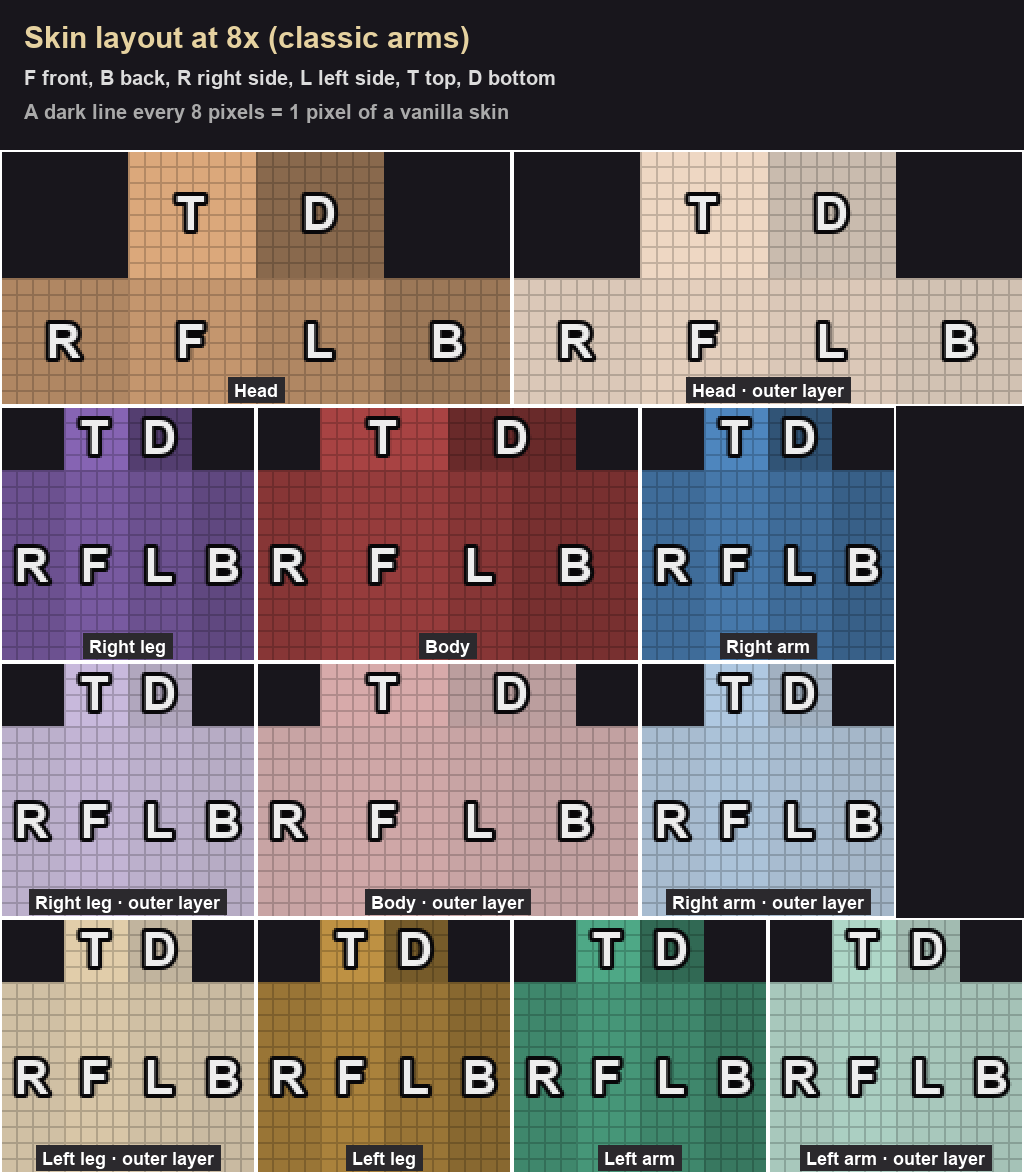
- Quick start: scale your normal skin up 8 times without smoothing (nearest neighbour in your editor) and paste it over the template. Then add the detail: folds, seams, hair, the face.
- The outer layer (jacket, sleeves, trouser legs, the head's hat layer) is transparent in the template. Paint on it what should stand slightly off the body: a collar, strands of hair, the edges of clothes. Transparent pixels don't show.
- Keep one palette and one light direction (from above) on every face, so the model reads as one piece.
- Save a PNG with transparency under the same name,
skin.png.
The model in Blockbench
Open model.bbmodel in Blockbench (File → Open Model). The list on the right (the Outliner) shows the
body part groups. The textures come from the avatar folder; if you repainted skin.png elsewhere,
press refresh on the texture in Blockbench.
Groups and their names
Figura decides which body part a group follows by how its name starts, case-sensitive:
| Group name starts with | Moves like |
|---|---|
Head | the head |
Body | the body |
RightArm, LeftArm | the right and left arm (also shown in first person) |
RightLeg, LeftLeg | the right and left leg |
Cape | the cape (it sways even if you own no cape) |
So head in lower case is not the head, and HeadPhones is. Put new extras inside
the group they belong to: ears and hats in Head, a bag or coat tails in Body; then they
move with that part. Don't start your own group names with these words unless you want them to move on their own.
Adding an extra
- Select a group (say
Head) and add a group inside it (Add Group) with a clear Latin name, such asEars. - Add cubes inside it (Add Cube) and move them into place. Sizes are in vanilla model pixels: the head is 8×8×8.
- An extra is easiest with a texture of its own, like the hat's
hat.png: Textures → Create Texture, 8 times the size you need, and Per-face UV if you want to place the faces by hand. - Save (Ctrl+S). Figura reloads the avatar by itself as soon as the file changes.
If you start a model from scratch instead of the template, pick the Generic Model format (or the plugin's
format): Figura loads no other. To change an existing model's format: File → Convert Project. Figura plays
Blockbench animations too: give the animation a short name and start it from the script, for example
animations.model.wave:play().
Toggleable hats, clothes and other extras
Yes, you can take them off and put them on in game. Hold B to open Figura's action wheel. The template already has a “Hat: take off / put on” button there. Every player sees the change, and your choice is remembered until your next login.
This is how script.lua does it. To add, say, a hood, append a block like this to the end of the script,
with your group's path, names and button item (the template already sets the settings file name,
config:setName, above):
local hood = models.model.Head.Hood      -- the group Hood inside Head in model.bbmodel
local hoodOn = config:load("hood")
if hoodOn == nil then hoodOn = false end
hood:setVisible(hoodOn)

function pings.setHood(state)            -- a ping runs on every player's client
  hoodOn = state
  hood:setVisible(state)
end

action_wheel:getCurrentPage():newAction()
  :title("Hood: put on")
  :toggleTitle("Hood: take off")
  :item("minecraft:leather_helmet")
  :toggled(hoodOn)
  :onToggle(function(state)
    config:save("hood", state)
    pings.setHood(state)
end)models.model.Head.Hoodis the group's path:modelis the file namemodel.bbmodel, then the groups in order. The Figura Model Format plugin copies such a path from the right-click menu (Copy ModelPart Path).- Each button needs a ping name of its own (
pings.setHood). - Players who come along later learn whether the extra is on from a repeated ping: the template sends one every
10 seconds; add
pings.setHood(hoodOn)there.
Wearing it and showing it to others
- In game, press Esc and Figura's triangle button (Δ) on the right.
- In the Wardrobe tab, pick your avatar from the list on the left. You are wearing it now, but only you see it.
- Press the upload button (“Upload avatar to the Cloud”). The avatar goes to Persephone's avatar server and everyone sees it. Figura won't upload an avatar whose script has errors until you fix them.
- After changes, upload again: other players see the last version you uploaded.
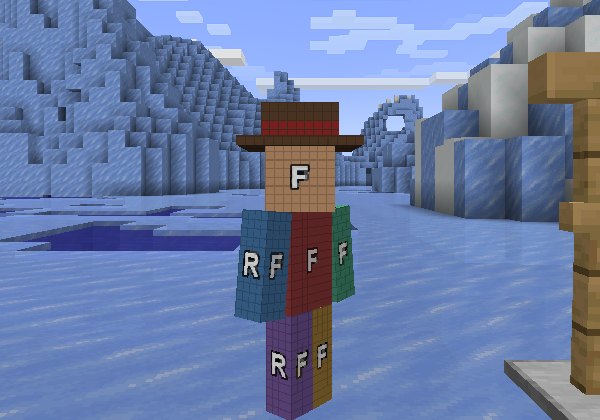
Troubleshooting
- The avatar isn't in the wardrobe
- The avatar folder needs an
avatar.json(even an empty one), and the folder must sit directly infigura\avatars, not inside another folder. - The model doesn't load, with a format error
- The model isn't in the Generic Model format: File → Convert Project.
- Red text about the script in chat
- The message gives the line in
script.lua. The usual cause is a group path that doesn't match the group's name in Blockbench (case matters). - Failed to parse file name
- The settings file is named after the avatar, and the name has Cyrillic letters or symbols. Put
config:setName("my_avatar")at the top of the script, as the template does. - Others don't see an extra I put on
- Change visibility through a ping (
pings.…), not directly; otherwise only you see the change. - The avatar is too large
- The limit is 2 MB. Textures usually take the space: keep them at no more than 8× vanilla and remove unused ones. The Figura Model Format plugin has Tools → Optimize Model.
Figura's full documentation: docs.figuramc.org. If something doesn't work out, ask the game masters.